
Car
physics - reference
| Every
physical aspect of the car should be in the car.ini file. |
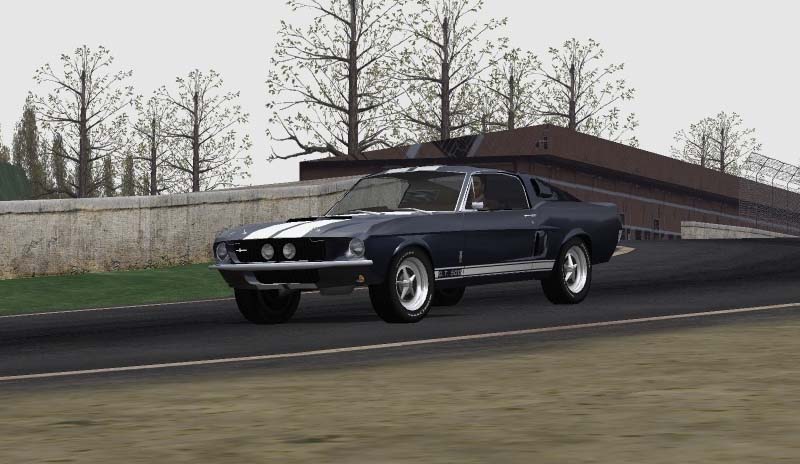
|
This document describes the various physical aspects of cars
that you can tweak in Racer; it is the physics editor's Bible. As the featurelist
grows, this list may not always be entirely complete; check out the file data/cars/default/car.ini,
which will have 99.9% of all the possible variables set (these are used as default
values in case specific car.ini files for other cars miss them). I'll try and
add some generic information on how Racer simulates vehicles here as well, hopefully
combining the completeness of a reference guide with accompanying information
on how to use it (and what is and isn't simulated).
There is a special page for the Pacejka
tire formula (which is used as part of the tire model). If you have a hard
time getting a drivable car, the car physics troubleshooting
page might help out. Also make sure you read the tutorial
when you start a car (for info on car cameras etc).
Note this document isn't meant for setting up the car; that's
a separate issue. This document describes the features behind the setting up,
which are mostly static for the casual driver (who just changes suspension rates,
things like that).
If you find settings (in car.ini files) that are missing from
this document, please mail me so I
can add the omitted parameter to this page.
Thanks go to Claes Wikdahl
for creating the Mitsubishi Evo6 which I used in clarifying some concepts.
Throughout Racer's life, many new variables have entered the
stage. See pitstop.totalnfs.net/racerwiki/index.php/Car_ini_changes
for a list of changes sorted by Racer version.
Linearity is used in a number of places (controls, steering,
throttle, engine mapping, braking). If we take
steering as an example, 0 is fully non-linear, smoothing steering a lot when
not fully applied (around the center, steering is slow; it gets faster as you
come to the limits of the wheel rotation). 1 is fully linear. Values above 1,
upto 2 actually increase response, exaggerating the actual input (giving an
exponential response). Most controls will benefit from a mild non-linearity
though (0..1).
The shape used to get non-linearity is an x^3 polynomial. To be more precise, here is the pseudocode, where 'l' is linearity.
function Linearize(v,L)
if L>1 then {
L=2-L; if(v>=0){ invV=1-v; return v*L+(1-L)*(1-invV^3); } else { invV=1+v; return v*L+(1-L)*(-1+iv^3); }
else return v*L+(1-L)*v^3
Also, for aerodynamics for example, you can copy the default
values and paste them into your car's car.ini file as a template for modifications.
Added variables should generally not change you car's behavior (or not much)
to keep forward compatibility.

You can specify some information about the car itself.
Nothing much is done with this, other than it may be used in the future in the
'garage' (where you select a car).
- car.name; the
actual full car name (i.e. 'Porsche 911').
- car.year; specifies the years in which
this car was produced/used.
- car.id; specifies a car ID that is unique for this car type (consisting of no more than 32 characters, and all characters being A-Z, a-z or underscore ('_') ). This isn't used really; the idea was to be able to identify a car by its ID, rather than its directory name. However, a guarantee that the ID is unique for a type of car is more easily done by using a fixed directory name, rather than a fixed car.id value (any car creator can come up with any car ID). So instead, cars are recommended to be distributed with a directory name, so that most people will use the same ID. This issue will only come up really in multiplayer racing.
- car.version; this identifies the minimal Racer version that you need to be able to run this car. For example: '050b6' would mean v0.5.0 beta 6, '082' means v0.8.2. Cars will refuse to load if there version is larger than the Racer executable version.
- car.grip_factor: this will scale the tire forces (so the default is 1.0). The effect is only applied to lateral & longitudinal tire forces (Fx & Fy in vehicle terms), not load/spring forces (Fz in vehicle terms).
- car.acc_factor: scales accelerations. Motion platform control only (proprietary, v0.8.3+).
Force feedback settings (since v0.8.24, more have been added):
- car.ff_factor: scales steering wheel force feedback values, to be able to control the physics engine's Mz (aligning torque) calculations. Default is 1.0. Note that this value ONLY affects Mz values generated by the Pacejka tire formulae; other forces (such as surface rumble) won't be affected since they are a part of the track, rather than the car. Such effects need to be scaled using the controllers (or external software such as Logitech Profiler).
- car.ff_friction: scales the controller setup friction amount.
- car.ff_stickfriction: scales the controller setup stick friction amount (friction when you stand still; at 5 m/s the friction will be as dictated by the normal friction.
- car.ff_damping: scales the controller setup damping amount.
- car.ff_inertia: scales the controller setup inertia amount.
- car.ff_gain: scales all the above factors. Normally this is just 1.0, but it can be used as a quick tune if you feel a car is relatively too soft or strong for your taste. Car designers will probably want to leave this value at 1.0, enabling end users to tweak a car fast if needed.
The sounds now have their own
page.
The car is split up into several models. The parts that
have an associated 3D model use a model chunk. Within that chunk you can specify
model.file, which indicates the DOF file to use (from the car directory), and
a scale.x/y/z, with which you can scale the model. It is recommended
you do NOT use the scaling, as this takes time when loading and may confuse
you in the Modeler.
More information on the exact definition of model chunks can be found in the car models tutorial.
- Body model; specified
in body.model.
- Helmet/pilot model; specified
in pilot.*. More information on this is in the
helmet tutorial.
- Light models; braking lights
(that are drawn when the player is braking) are specified in body.model_braking_l
and body.model_braking_r, while body.model_light_l and body.model_light_r
specifies front lights models, which are always on in v0.4.9. More information
on car lights in the car lights tutorial.
- Wheel models; specified
in wheel<x>.model
- Wheel brake models;
specified in wheel<x>.model_brake. These models will turn with
the wheels, but don't rotate themselves around the axle. Useful for brake
disk models.
- Shadow; this is an implicit
model, just a polygon which is generated for you automatically. The texture
is specified by car.shadow.texture. The size is taken from
car.shadow.width and car.shadow.length. Often you don't want
the shadow polygon size not to exactly match the body's size (for the Ferrari
312 for example).
When using projected shadow (see below), 2 more values come into play; car.shadow.intensity_light
and car.shadow.intensity_dark. The dark intensity (0..1)
indicates how thick the polygon is blended where the projected shadow also
exists. The light intensity indicates the thickness where the projected shadow
is NOT. Therefore the lighter intensity is a lower number than the dark intensity.
Example values are 0.7 for dark, 0.3 for light. (v0.5.2 beta 8.9)
- Projected shadow; this
is specified in the car.ini in the graphics.shadow.model
tree. This model should specify a low level-of-detail model to avoid slow
rendering speeds. Notice that the projected shadow model has one extra option
that regular models don't have: use_shaders=...
With use_shaders you can determine whether the projected
shadow should use shaders or not. Previous version of Racer (<v0.5.2a8)
didn't use any shaders and gave a sharp shadow. This is still the default
case, but if use_shaders=1, you can make special models with falloff shadows
that give soft shadows. An example is to make a side representation of the
car; delete the top faces, delete the bottom faces, so only the sides remain.
Then apply a texture to the sides that's dark in RGB, but falls off in A (alpha)
far away from the car (in your model that is at the top of the car). Hopefully
examples in cars will make it easier to understand though.
The opacity/intensity of the projected shadow is set in graphics.shadow.intensity.
A typical value is 0.3 (30% opacity).
A small section on AI modifies the car behavior when in
AI mode (press Shift-A during a race to toggle AI). The following AI parameters
are available per-car:
- ai.max_velocity; when loading a default
AI file (data/tracks/<trackname>/ai/default.ini), the velocity must
match the capabilities of the car. An AI file was probably created by driving
a specific car, not always generating suitable velocities for the car you're
editing. When no specific AI for this car is present, default.ini is loaded,
all velocities are normalized (the fastest speed becomes 1.0) and the velocities
are then regenerated using: velocity=ai.max_velocity*normalized_velocity.
See also 'Creating default AI lines' in the track creation page.
- ai.understeer_correct; ... (default is 99999). Corrects understeer, but so difficult to tune that you'd better leave it.
- ai.oversteer_correct; ... (default is 99999). Similar to understeer_correct.
- ai.grip_factor; the forces generated at
the wheels will be multiplied by this number (so by default, the value will
be 1). Use this to give the car a bit more grip to avoid cars spinning out
as it tries to mimic the human driver's speed.
- ai.cg_factor; affects the tire lateral forces as they are applied to the chassis. Similar to grip_factor, this one is normally 0 (no effect) upto 1.0 (full effect). As it goes toward 1.0, the lateral forces are more and more applied at the car's CG height. This means that less roll is generated. This helps in keeping the car from flipping as you push the AI performance. Supported since v0.8.34.
For example, say you have an F1 car that you want to speed a lot. You drive a good AI lap (see the AI line documentation) and the AI fails to match your driving speed. Give the car some extra grip (ai.grip_factor=1.5 for example) and an artificially lower CG (try ai.cg_factor=0.3 for example). Now try to have the AI match your lap again. You can try 'ai performance 1.5' to speed up the AI if the laptime is too low.
- ai.rc_factor; affects the rollcenters when in AI mode. This pulls the rollcenters to the CG height (rc_factor=0 means no effect, where 1.0 means the roll centers are fully pulled towards the CG height). It might be best to leave this value at 0, although some people may find a use for it. I found using cg_factor was more effective. Available in v0.8.34+.
The setting body.mass indicates the mass in kg. Note that the
engine weight is added (engine.mass) as may others (a driver for example).
Very important for the handling, the center of gravity is specified
in car.cg.x/y/z. For versions upto (and including) v0.5, the X and Z values
were ignored; this is because the CG must match the center of the (graphical)
body model. Now, a nullpoint is defined, which basically is where-ever you'd
want it, but mostly it's quite close to the CG (and it is recommended to be close to the CG itself for all the offsets to make sense). The nullpoint makes it possible
to independently move your 3D model and your CG to match up.
More information on the nullpoint way of thinking can be found here.
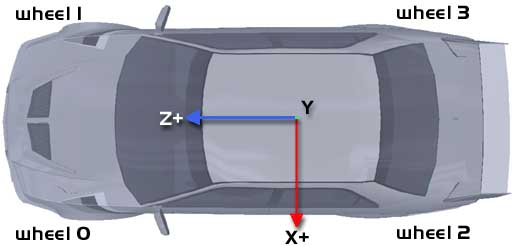
| To the
right you see a typical car. Notice the numbering of the wheels. Actually,
the suspensions (their body attachment points) define the locations of
the wheels.
The axis system is that which OpenGL
uses (the SAE uses a different
vehicle axis system, but I've adopted OpenGL's system for ease of graphics
display). The Y goes up through the roof of the car.
This image shows the local coordinate system of the car as it was defined
in the modeler.
You can move the CG relative to the nullpoint in car.cg.x/y/z.
The nullpoint isn't shown here, but it's the point from which every other
location is calculated. The nullpoint by definition IS location (0,0,0). |
 |
The lower the CG height (cg.y), the more stable the car. A height
of about 0.3 to 0.4 (m) is typical for most cars (check the Ctrl-9 screen to see the actual CG height; this isn't the same as your cg.y, but is the result of all springs stabilizing in a steady state), although F1 cars might get
lower ones. Values below 0 are not physically possible; the CG Y value will
always lie somewhere in the bounding hull of the car (to visualize the hull,
imagine pulling a cloth all over the car and pulling it tight; the shape of
the cloth is then approximately the bounding hull).
The inertia values describe how willing the car is to rotate
around its local X/Y/Z axes (so around the Center of Gravity, or CG). The higher the number, the more energy it takes
to rotate the car (the less quickly it will start rotating). The numbers are
stored in body.inertia.x/y/z and have the SI units kg*m^2. I don't have a general formula for these numbers,
but it seems like normally the X value is highest, the Y value is a little lower
(90%) and the Z value is lowest (perhaps ~60% of the X value).
An example Ferrari
of 1280 kg has a X inertia value of 1950. Lower weight
cars have lower inertiae. A good empirical method that is in use for Sports/Formula style car is the following:
- Gather information on sprung mass ('preLoad'), wheelbase (front to rear) and front distance to CG ('attF').
- Iyy = body.inertia.x = 0.8*(frontPreload*(attF^2) + rearPreload*((wheelBase-attF)^2))
- Izz = body.inertia.y = Iyy*1.2
- Ixx = body.inertia.z = minimally Izz*0.5 (difficult to obtain, but at least half of Izz).
For example: you have car that weighs 525 kg, has a weight distribution of 40/60, a wheelbase of 2.78 m and the front wheels are 1.6 m away from the CG.
- frontPreload = 525kg * 0.4 (40/60 weight balance, so 40% at the front)
- rearPreload = 525kg * 0.6
- attF = 1.6 (m)
- So, Iyy= 0.8*(525*0.4*1.6^2+525*0.6*(2.78-1.6)^2)= 781 [kgm^2] (body.inertia.x)
- Izz = Iyy * 1.2 = 937.2
- Ixx is about 460; do note that the roll inertia is quite dependent on the car design; an F1-style car will have a low roll inertia.
Car collision handling now has its own
page.

The steering wheel in Racer is simple. It has lock (how
many degrees it can turn), can deliver Ackerman effects (one wheel turning more
than the other) and has linearity added to modify steering responsiveness per
car.
The steering wheel is represented by a 3D model.
- The steer.x/y/z give the steering wheel's
location, relative to the body model's center.
- The steer.xa angle gives the rotation towards
the driver in degrees.
The maximum graphical angle of the steering wheel is specified
in steer.lock (in degrees, not radians!). It's mostly a graphical option; the relationship to your real controller's
lock may be preserved if you specified it in your controlset (not yet in v0.5.0).
The steering ratio (ratio of steering wheel rotation divided by wheel lock) is calculated based on this value, and the value of wheel 0's lock (wheel0.lock). So: steeringRatio=steer.lock/wheel0.lock.
The Ackerman effect is that of the inner wheel turning more
than the outer wheel in a tight turn. This improves turn-in for low-speed big-angle
corners.
- wheel<x>.ackerman gives the factor at which
the inner wheel will turn MORE than usual. So if 'ackerman'=2, then for a
right turn the right wheel will turn twice as much. The default value is 1
(no Ackerman effect). Use values larger than 1.0 to make the inner weel turn
more (values <1.0 have a reversed effect and probably aren't useful).
Theory: although Ackerman steering geometry is used on
a lot of passenger cars, it is less common on racing cars. This is because at
racing speeds the wheel deflection will generally not exceed 10 degrees, and
the effect of Ackerman geometry would be very little, so leaving it out isn't
a problem. At the opposite side, karts often have a LOT of Ackerman steering.
For more control of the steering 'feel', you can adjust steering
linearity per car. You do this with steer.linearity. The default
is 1.0, meaning fully linear. For more info on this value, see linearity
above.
Next to the global control settings, you can modify force feedback
strength per car. This helps to subtly modify force feedback for some cars.
- car.ff_factor; a multiplier for the FF effects.
Defaults to 1.0.
The engine now has its own
page.
You can specify the gearbox workings in the gearbox section.
- gearbox.gears; specifies the number of gears. May
be 6 or 7 for F1 cars, less for passenger cars mostly. The maximum allowed
is 10.
- gear<n>.ratio; for example gear0.ratio. Specifies
the multiplication of the gears. Gear 0 is the reverse gear, although you
should make it <0 to actually have it become a reverse gear. The default
-2 value of Racer seems a bit unfortunate since a value of -7 may make more
sense.
- gear<n>.inertia; specifies the inertia for a
given gear. As lower gears have more teeth and are larger, the lower gears
also have bigger inertia values. They are given in kg*m^2. Note that the inertia
has a squared influence on the total drive train (see also my article on geared
driveline parts).
Note that the gearbox velocity can be seen with Ctrl-8 ingame, and it is the velocity at the output of the gearbox (so it's the same as the driveshaft rotational velocity).
Gillespie's book (Fundamentals
of Vehicle Dynamics) contains some examples of drivetrain inertia
values.
- gearbox.end_ratio; in case no differential is defined, this value will be used. However, it is very much advised to define a differential.
Stored in the engine subtree, shifting can be done manually
or automatically. Mostly (without freeshifting) what happens is a 3-phase process;
declutch (time_to_declutch), a moment in neutral (time_in_neutral)
and lastly the clutch engages again with the new gear set (time_to_clutch).
Note a separate set can be specified (v0.5.2b7.5+) for downshifting, which in
conjuction with blip_throttle (see racer.ini).
These parameters define shifting:
- engine.shifting.automatic specifies whether automatic
shifts should occur (1=automatic, 0=manual transmission).
- engine.shifting.shift_up_rpm gives the RPM at which
the engine should start shifting up.
- engine.shifting.shift_down_rpm gives the RPM at which
the engine should start shifting down.
- engine.shifting.time_to_declutch gives the number
of milliseconds for which it takes to declutch
- engine.shifting.time_in_neutral is the time spent
in neutral inbetween declutching (in the old gear) and clutching (in the new
gear). Defaults to 0. Introduced in Racer v0.5.1 alpha 9. Note that the new
gear will not be selected until the shift up or shift down control is released.
- engine.shifting.time_to_clutch in the same way as
time_to_declutch gives to time to let the clutch engage again.
- engine.shifting.time_to_declutch_down is the same
as time_to_declutch, only for downshifts. If not specified, the same
time as for upshifts is used.
- engine.shifting.time_in_neutral_down is the downshift
equivalent of time_in_neutral.
- engine.shifting.time_to_clutch_down is the downshift
equivalent of time_to_clutch.
- engine.shifting.blip_throttle sets the amount
of throttle during downshifts. 0 means 'take the actual throttle pedal', any
value above 0 (max=1) will set the throttle to that value. This is used to
get rpm slightly up when downshifting to avoid jerks when the clutch is released.
- engine.shifting.cut_throttle decides whether
to cut the throttle on up- & downshifts (0=disable, 1=enable). For upshifts,
this keeps rpm from rising fast if you have the throttle floored. For downshifts,
this only kicks in if blip_throttle=0 and cut_throttle=1; perhaps not really
useful.
- engine.shifting.fast; if set to 1, avoids waiting for the shift-up control
to be released while shifting (keeping the gearbox in neutral while depressed).
Useful for racecars which shift very fast.
Racer (from v0.5) can do freeshifting, so the user can attempt
to put the car in a certain gear at any time. More parameters will deal with
bad shifts later.
The clutch is the part that splits the driveline into 2 parts;
the preclutch part (the engine itself) and the postclutch part (driveshaft plus
differentials and wheels). The parameters are:
- clutch.max_torque; specifies the capacity (amount
of frictional torque) the clutch can generate. Keep this value above your
engine's maximum torque generation (engine.max_torque), or the clutch
will slip when reaching that peak. Keeping it low, on the other hand, makes
for smoother shifting, since the clutch isn't that grippy (less chances to
stall too).
The handbrakes can be applied to any and all wheels. The wheels
that are affected are set in handbrakes.wheels. Set it to "23"
for example and the handbrakes will work on wheel2 and wheel3 (see image).
Mostly these are the 2 rear wheels, which should correspond to "23".
Then, for every wheel, define the maximum handbrake torque in
wheel<x>.max_handbrake_torque. If not defined, the value of wheel<x>.max_braking
is used, but that generally is too high. Theoretically, a handbrake will generate
approximately 10% of what the normals brakes can generate.
Note that the combined effect of pedal braking and handbrakes
will never exceed the max_braking torque. So they are added, but clipped
at max_braking.

Mostly you'll edit camera positions from within Carlab. For
consistency, here are the used parameters:
- camera<x>.name; a humanly readable name for
this camera (there are 10 car camera's named camera0 to camera9).
- camera<x>.follow; which axes to track; pitch,
yaw, roll are possible (camera<x>.follow.pitch=1
for example). If set to 1, following is applied.
- camera<x>.angle; the angle under which to view
the car.
- camera<x>.offset; the offset (distance from
the car center) where the camera floats.
Note that for the new graphics engine some new entries will
be added to allow for more natural car cameras.
To be able to drive the car, you can sometimes expect some help
to be implemented. Currently (v0.5.2 beta 5) automatic shifting and traction
control are implemented. ABS is scheduled for the future.
Automatic shifting is possible by setting engine.shifting.automatic
to 1. See Gearbox shifting for more details.
Traction control can be used to avoid spinning the (often rear)
wheels while accelerating. It is allowed in certain classes to implement this.
When the wheel speeds differ too much, TC kicks in and cuts the throttle, until
the wheel speed ratio returns to acceptable levels.
Currently traction control uses wheel speeds (rotational velocities) to determine a ratio. The front wheel speed is the combined (averaged) rotational velocity of front wheels, and the rear speed is similarly an average of the rear wheels speed. Note that versions before v0.8.3 did an addition of all velocities, so if the number of front wheels and rear wheels isn't equal, you'd get incorrect traction control behavior.
The following variables
determine the behavior:
- traction_control.max_velocity_ratio; determines
the ratio of the front vs. rear wheel speed that is allowed without TC intervening.
A typical value is 1.1, meaning to allow 10% of speed difference (the rear
wheels spinning 10% faster than the fronts).
- traction_control.min_velocity_ratio; when
TC kicks in, this is the ratio that is needed to let the throttle be accepted
again. A typical value according to an F1 site explanation is 1.0, although
this seems not to work on frontdrive cars; there actually while braking the
ratio may not go below 1.0, so a value of 1.05 is a better starting value.
A symptom of this problem is if you have a FWD car which now & then (especially
in AI) seems to slow down far too long, as if the throttle is cut. Check the
controller debug screen (^4) and see if TC is active for prolonged periods
of time.
- traction_control.min_velocity; the minimal velocity for a car to have TC enabled at all. Below this speed, no traction control will be applied. The default is 0 but you may want to set a small value to avoid TC kicking in during drive-off.
- traction_control.enable; if 1, TC is enabled
for this car.
ABS (anti-lock braking system) is implemented since Racer v0.5.2b5.3.
ABS can be used to avoid locking the wheels while
braking. When the wheel
speeds (see traction control) differ too much, ABS kicks in and releases the brakes, until the wheel speed
ratio returns to acceptable levels.
The wheel speed ratio is calculated the same way as with traction control.
The following variables determine the behavior:
- abs.max_velocity_ratio; determines the ratio
of the front vs. rear wheel speed that is allowed without ABS intervening.
A typical value is 1.1, meaning to allow 10% of speed difference (the rear
wheels spinning 10% faster than the fronts).
- abs.min_velocity_ratio; when ABS kicks in,
this is the ratio that is needed to let the throttle be accepted again. A
typical value according to an F1 site explanation is 1.0, although a value
slightly between 1.0 and max_velocity_ratio may be more appropriate.
- abs.min_velocity; the minimal velocity for a car to have ABS enabled at all. Below this speed, no ABS will be applied. The default is 0 but you may want to set a small value to avoid ABS being applied near zero speed.
- abs.braking_factor; the factor which is multiplied with the brake control to come up with the ABS-on state amount of brake applied. So, when ABS is turned on, the actual braking applied is brakePedal*braking_factor (where brakePedal=0..1). Default is 0.5 since v0.8.3 (it was 1.0 before, which effectively meant no adjusting of the brake control took place!). See data/cars/default/car.ini.
- abs.enable; if 1, ABS is enabled for this
car.
(last
updated
March 29, 2012
)
